Connecting SQL Server to IntelliJ IDEA Using PySpark (With Full Explanation)
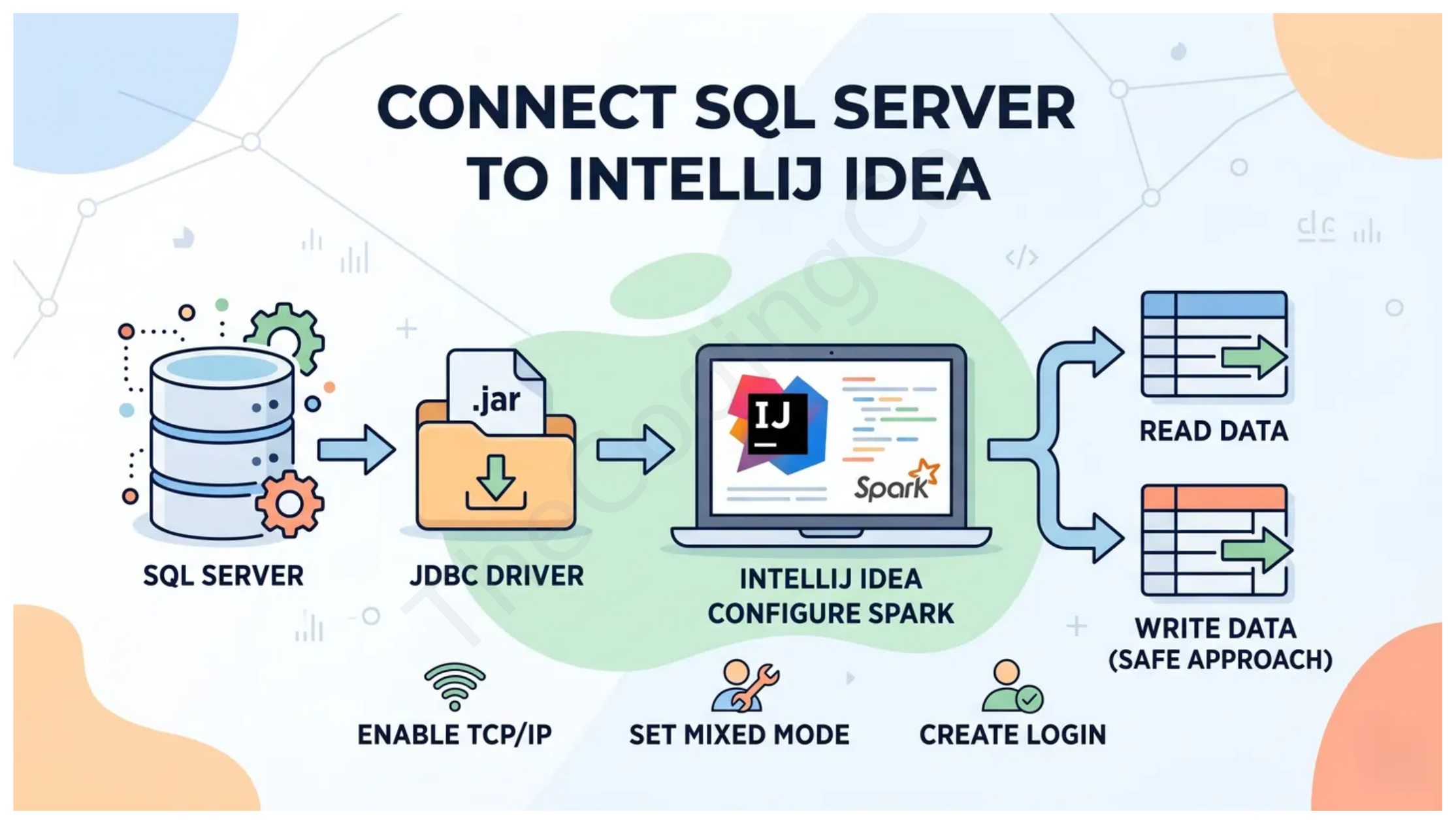
Working with data often means bridging traditional databases with modern processing engines. In this guide, we’ll connect Microsoft SQL Server to Apache Spark using PySpark inside IntelliJ IDEA, and more importantly, understand what’s happening behind the scenes.
Why This Setup Matters
- SQL Server → stores structured data
- Spark → processes large-scale data efficiently
- PySpark → lets you use Python for distributed computing
This integration allows you to:
- Pull data from SQL Server
- Transform it using Spark
- Optionally write it back
1. Why Do We Need a JDBC Driver?
Before jumping into setup, let’s understand the core concept.
What is JDBC? JDBC (Java Database Connectivity) is a standard API that allows Java-based applications (like Spark) to communicate with databases.
Why is the JDBC .jar file needed? Spark is built on JVM (Java Virtual Machine). SQL Server speaks its own protocol. The JDBC driver acts as a translator between them.
Without the JDBC driver:
- Spark cannot understand how to talk to SQL Server
- You’ll get errors like:
No suitable driver found
Think of it like this:
- Spark → speaks Java
- SQL Server → speaks TDS (Tabular Data Stream protocol)
- JDBC driver → acts as an interpreter between them
2. Download and Place the JDBC Driver
Download from Microsoft:
Steps:
-
Extract the ZIP file
-
Navigate to:
sqljdbc → enu → jars -
Choose:
jre8 → Java 8jre11 → Java 11 -
Create folder:
C:\spark\jars -
Copy:
mssql-jdbc-13.4.0.jre11.jar
3. Why Do We Add the JAR in Spark Config?
Now the important part most people skip understanding 👇 Code:
from pyspark.sql import SparkSession

spark = SparkSession.builder \
    .appName("MSSQL Connection") \
    .config("spark.jars", "C:/spark/jars/mssql-jdbc-13.4.0.jre11.jar") \
    .getOrCreate()
What does this do?
spark.jarstells Spark:- “Load this external library before running anything”
Why is this required? Spark runs in a distributed way:
- Driver process
- Executor processes
If the JDBC driver is not included:
- Executors won’t know how to connect to SQL Server
- Job will fail at runtime
In simple terms: You are injecting the database driver into Spark’s runtime environment.
4. SQL Server Setup (What’s Actually Happening)
Instance Type
- Default instance: MSSQLSERVER
- Connection:
localhost:1433
5. What is TCP/IP and Why Enable It?
What is TCP/IP? TCP/IP (Transmission Control Protocol / Internet Protocol) is the fundamental communication protocol used by computers to talk over a network.
Why SQL Server Needs It? By default:
- SQL Server may only accept local/internal connections But Spark connects using:
- Network-based communication (even on localhost) So TCP/IP must be enabled to allow:
- External programs (like Spark) to connect
Steps to Enable TCP/IP
-
Open:
SQLServerManager15.msc (or based on version) -
Navigate:
SQL Server Network Configuration → Protocols for MSSQLSERVER -
Enable:
- TCP/IP
-
Check Port:
- Go to IP Addresses tab
- Find TCP Port (usually 1433)
Security Note (Important)
Enabling TCP/IP does NOT automatically make your system unsafe, but: Risks (if misconfigured):
- If your port (1433) is exposed to the internet:
- Unauthorized access attempts
- Brute-force login attacks
Best Practices:
-
Keep SQL Server bound to:
localhost -
Do NOT expose port 1433 publicly unless needed
-
Use strong passwords
-
Enable firewall rules
-
Avoid using sa account
For local development, this setup is generally safe.
6. Authentication Setup (Why Mixed Mode?)
What is Mixed Mode? SQL Server supports:
- Windows Authentication
- SQL Server Authentication
Why we enable Mixed Mode? Spark does NOT use Windows authentication easily.
So we use:
- Username + Password authentication
Create Login
- Username: spark_user
- Assign:
- Database access
- Role: db_owner
7. JDBC Connection Explained
jdbc_url = "jdbc:sqlserver://localhost:1433;databaseName=your_database"

connection_properties = {
    "user": "spark_user",
    "password": "your_password",
    "driver": "com.microsoft.sqlserver.jdbc.SQLServerDriver"
}
Breakdown:
- jdbc:sqlserver:// → protocol
- localhost:1433 → server + port
- databaseName → target DB
- driver → tells Spark which JDBC driver to use
8. Reading Data from SQL Server
df = spark.read.jdbc(
    url=jdbc_url,
    table="your_table_name",
    properties=connection_properties
)

df.show()
What happens internally?
- Spark connects via JDBC
- SQL query is executed
- Data is pulled into Spark DataFrame
9. Transform Data Using Spark
from pyspark.sql.functions import col

df_filtered = df.filter(col("column_name") > 100)
Spark processes data:
- In-memory
- Distributed across nodes
10. Writing Data Back (Important Concept)
⚠️ Why overwrite is dangerous?
mode="overwrite"
This:
- Drops table
- Recreates it
- Deletes all existing data
Safer Options
mode="append"
Or:
- Write to a new table
- Use Spark only for processing
Important Concept 👉 Spark is NOT a transactional database
Unlike SQL Server:
- No ACID guarantees
- No row-level updates
Spark is: ✔ A data processing engine ❌ Not meant for safe incremental DB updates
Final Thoughts
This integration between:
- Microsoft SQL Server
- Apache Spark
is powerful—but only when you understand the why behind each step.
Key Learnings:
- JDBC driver = communication bridge
- spark.jars = runtime dependency injection
- TCP/IP = network communication enabler
- Authentication = controlled access
- Spark ≠ database