Git for Data Engineers, Complete Roadmap from Basics to Advanced
A proper syllabus for Git specifically from a data engineering angle, covering exactly what to learn, in what order, and where each command actually shows up in real pipeline and notebook work, not just generic version control theory.
Why Git genuinely matters for a data engineer, not just a software developer
Git tends to get treated as something only application developers need to know properly, and data engineers pick up just enough to survive. That is a mistake. Your Data Factory pipeline definitions, your Databricks notebooks, your PySpark scripts, and your configuration files are all real code that changes over time, gets worked on by more than one person, and occasionally breaks in a way that needs to be traced back to exactly what changed and when. Git is the tool that makes all of that manageable, and being genuinely comfortable with it is a real, visible difference between someone who works like a solo scripter and someone who works like part of a real engineering team.
This roadmap covers Git specifically with that context in mind, and each stage ends with a quick reference list of the exact commands and concepts covered, so if you already know a topic, you can glance at it and move ahead. A quick note on background, if you have never used any version control system before, start from stage one properly, and if you are coming from something like SVN or TFS, I have called out where your existing habits transfer and where Git genuinely works differently.
Stage 1: The Core Mental Model Before Any Command
Before memorizing commands, understand what Git is actually doing conceptually, since this is exactly the part people skip and then struggle with later when something goes slightly wrong.
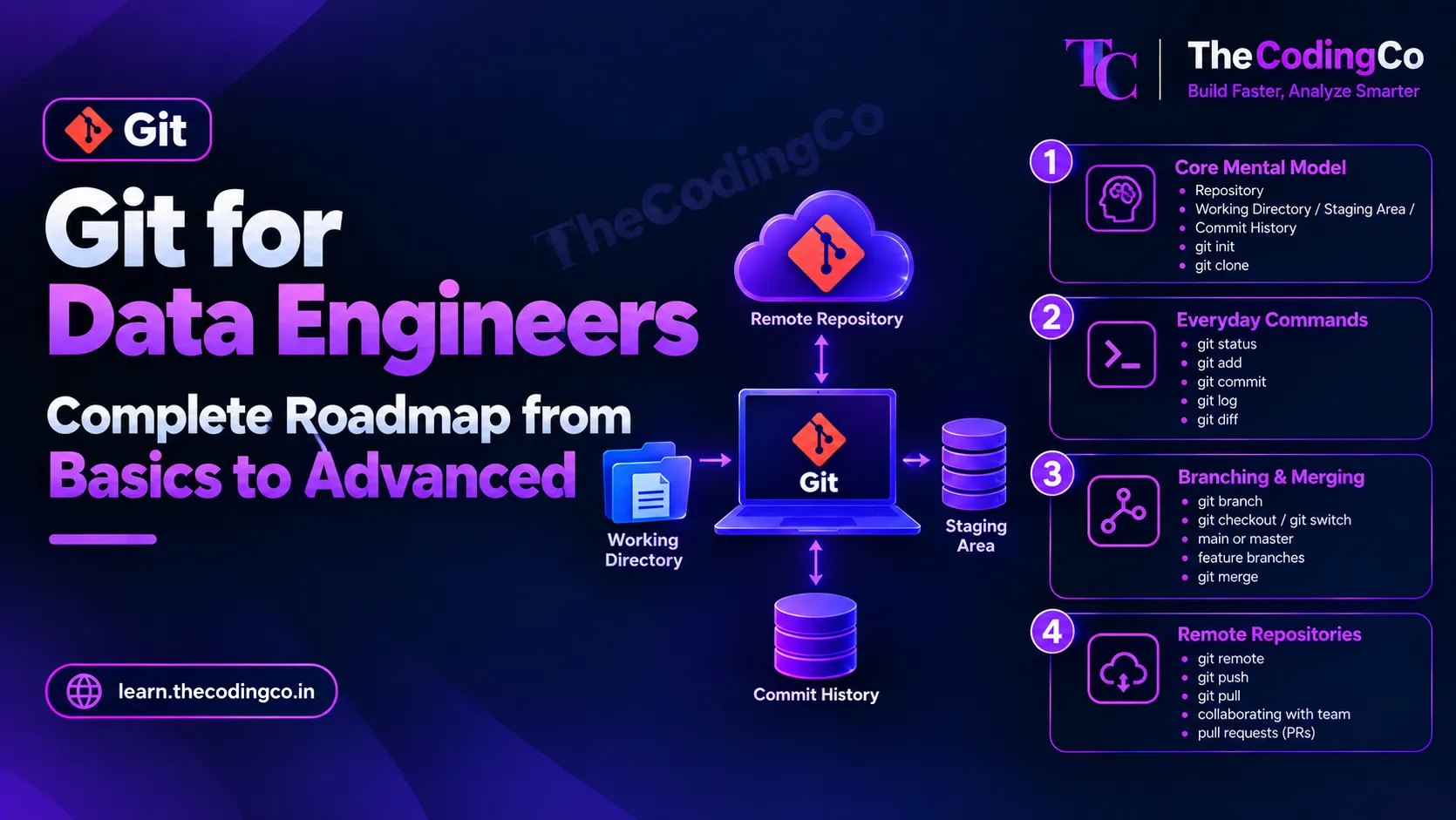
Git tracks changes to files over time inside something called a repository, and it does this locally on your own machine, not just on a remote server the way some older systems work. Understand the three areas Git actually moves your changes through, the working directory, where you are actively editing files, the staging area, where you deliberately choose which changes are ready to be recorded, and the actual commit history, the permanent record of snapshots you have chosen to save.
Learn git init for starting a brand new repository, and git clone for copying an existing repository, along with its full history, down onto your own machine. Real scenario, cloning your team's existing Data Factory or Databricks repository is almost always the very first thing you do on a new project, rather than starting from git init yourself.
Quick reference, stage one
- repository
- working directory, staging area, commit history
- git init
- git clone
Stage 2: The Everyday Commands You Will Use Constantly
These are the commands you will type more than any others, so real comfort here matters more than anything more advanced later.
Learn git status for seeing exactly what has changed since your last commit, which files are modified, staged, or untracked entirely. Learn git add for moving specific changes into the staging area, understanding that you can stage some changes and not others, which matters when you have touched multiple unrelated things and only want to commit part of it right now. Learn git commit with a clear, meaningful message, understanding that a commit is a saved snapshot of your staged changes, and git log for reviewing the actual history of commits, who changed what and when.
Learn git diff too, specifically for seeing the exact line by line changes you have made before committing them, real scenario being reviewing your own changes to a PySpark transformation script one more time before committing, catching a leftover debug line or an accidental change you did not mean to include.
Quick reference, stage two
- git status
- git add
- git commit
- git log
- git diff
Stage 3: Branching, And Why It Matters This Much
Branches are genuinely one of Git's most important ideas, letting you work on a change in isolation without touching the main, working version of the code until you are actually ready.
Learn git branch for creating and listing branches, and git checkout or the newer git switch for moving between them. Understand main or master as the primary branch representing the stable, working version of your pipeline code, and the standard practice of creating a separate feature branch for any new change, real scenario being creating a branch specifically to add a new incremental load pattern to a pipeline, without risking the currently working production pipeline code on the main branch while you are still testing your change.
Learn git merge for bringing a finished branch's changes back into main once it is ready, and understand at a conceptual level why merging keeps a full record of both branches' history, which matters later when you need to trace back exactly how a specific change made its way into production.
Quick reference, stage three
- git branch
- git checkout and git switch
- main or master as the stable branch
- feature branches
- git merge
Stage 4: Remote Repositories, Working With A Shared Codebase
Almost no real data engineering work happens with Git purely locally, so understanding remotes properly matters early.
Learn git remote for understanding the connection between your local repository and a remote one, typically hosted on something like Azure DevOps or GitHub, with origin being the standard name for your primary remote. Learn git push for sending your local commits up to the remote repository, and git pull for bringing down and merging any new changes from the remote into your local branch. Learn git fetch specifically as the quieter cousin of pull, downloading new changes from the remote without automatically merging them into your current work, which matters when you want to see what has changed before deciding how to incorporate it.
Real scenario, this entire stage becomes essential the very first time you are working alongside another data engineer on the same pipeline repository, needing to regularly pull their latest changes while pushing your own.
Quick reference, stage four
- git remote and origin
- git push
- git pull
- git fetch
Stage 5: The Real Collaboration Workflow
This stage is less about individual commands and more about the actual working pattern real teams follow, which matters just as much as knowing the syntax.
Learn the standard feature branch workflow properly, creating a branch for a specific piece of work, committing changes to it, pushing it to the remote, and then opening a pull request, a formal request asking for your changes to be reviewed and merged into main. Understand why pull requests matter beyond just being a formality, they let a teammate actually review your pipeline change before it reaches production, catching things like a hard coded value, a missing null check, or a change that might break an existing downstream table.
Learn the basic idea of code review etiquette from the other side too, reviewing someone else's pull request thoughtfully, leaving specific, constructive comments rather than vague ones, and understanding that this review step is exactly what catches a large share of real production issues before they ever happen.
Quick reference, stage five
- feature branch workflow
- pull requests
- code review as part of the real workflow
- reviewing someone else's changes constructively
Stage 6: Merge Conflicts, And Actually Resolving Them Calmly
Merge conflicts happen to everyone, and learning to resolve them calmly rather than panicking is a genuine, learnable skill.
Understand exactly why a conflict happens, Git cannot automatically decide how to combine two changes that touched the exact same lines of a file differently, so it asks you to decide manually. Learn to read the conflict markers Git inserts directly into the file, showing your version and the incoming version clearly separated, and learn to edit the file to keep the correct combined result, then stage and commit it to complete the merge. Real scenario, this comes up constantly when two people modify the same pipeline configuration file or the same notebook cell around the same time, and being able to resolve it confidently, rather than deleting one side blindly, is exactly what avoids accidentally losing someone else's real work.
Learn the basic difference between merge and rebase too, merge preserves both branches' history exactly as it happened, while rebase rewrites your branch's history to look as if it started from the latest version of main, producing a cleaner, more linear history at the cost of rewriting commits, which is why rebase should generally only be used on your own local, unshared branches rather than ones other people are also working on.
Quick reference, stage six
- why merge conflicts happen
- reading and resolving conflict markers
- completing a merge after resolving conflicts
- merge versus rebase, basic difference
Stage 7: Undoing Things Without Fear
A big part of genuine Git comfort is knowing you can undo a mistake, since that confidence is exactly what stops people from being overly cautious or, worse, avoiding Git features out of fear of breaking something permanently.
Learn git checkout for discarding local changes to a specific file back to its last committed version, and git stash for temporarily setting aside your current uncommitted changes without committing them, real scenario being needing to quickly switch to a different branch to fix an urgent issue without losing or committing your current unfinished work. Learn git reset at a working level, understanding it moves your branch pointer backward, and the meaningful difference between a soft reset, which keeps your changes staged, and a hard reset, which actually discards them, so you understand exactly how much caution a hard reset genuinely deserves.
Learn git revert too, specifically as the safer option for undoing a change that has already been pushed and shared with others, since it creates a new commit that reverses a previous one rather than rewriting history that other people may already be relying on.
Quick reference, stage seven
- git checkout for discarding local file changes
- git stash
- git reset, soft versus hard
- git revert for safely undoing shared history
Stage 8: Gitignore and Keeping A Repository Clean
A properly configured .gitignore file matters more in data engineering work than people initially expect, since it is exactly what keeps sensitive or unnecessary files out of your repository in the first place.
Learn to write a .gitignore file that excludes things like local configuration files containing credentials, virtual environment folders, Python cache files, and any locally generated output files that should never actually be committed. Real scenario, this genuinely matters the first time someone accidentally commits a file containing a real connection string or API key, since even after removing it in a later commit, that sensitive value technically still exists somewhere in the repository's history unless it is deliberately purged, which is exactly why preventing it from being committed in the first place through a proper .gitignore is so much better than cleaning it up afterward.
Quick reference, stage eight
- writing a proper .gitignore file
- excluding credentials, environment folders, and cache files
- why prevention matters more than cleanup after a credential leak
Stage 9: Git Specifically Inside Data Factory and Databricks
This stage connects everything above directly to the tools you are actually using day to day as an Azure data engineer.
Learn how Data Factory integrates with Git directly, connecting a Data Factory instance to a repository so that pipeline definitions are version controlled properly, with changes going through a proper branch and pull request flow before being published to the live Data Factory environment, rather than every change happening directly in the live, working version. Learn Databricks Repos specifically, which lets you connect a Databricks workspace folder directly to a Git repository, meaning your notebooks go through the exact same branching, committing, and pull request workflow as any other code, rather than existing only inside Databricks with no real version history.
Real scenario, this matters enormously the first time a notebook change breaks a production job, since having that notebook properly version controlled through Databricks Repos means you can look directly at exactly what changed between the last working version and the current one, rather than guessing.
Quick reference, stage nine
- Data Factory Git integration
- Databricks Repos
- version controlling pipelines and notebooks through proper branches and pull requests
Stage 10: Tags and Marking Real Releases
Learn git tag for marking a specific commit as a meaningful point in history, typically a release, real scenario being tagging the exact commit that corresponds to a specific pipeline version that was actually deployed to production on a certain date. This matters specifically when you need to quickly answer a question like exactly what pipeline code was running in production during a specific past incident, which a tag lets you find immediately rather than scrolling through a long, undifferentiated commit history.
Quick reference, stage ten
- git tag
- marking real deployed releases
- tracing back to exactly what ran in production at a given time
Stage 11: A Bit Of The More Advanced Side
Learn interactive rebase at a working level, specifically for cleaning up your own local commit history before opening a pull request, real scenario being squashing several small, messy work in progress commits into one clean, well described commit before asking a teammate to review it, making the actual change dramatically easier for them to follow. As mentioned earlier, this genuinely should stay limited to your own unshared local branches rather than anything already pushed and being worked on by someone else.
Learn cherry pick briefly too, for applying one specific commit from one branch onto another without merging everything else, real scenario being needing a single urgent bug fix from a feature branch applied directly to main immediately, without pulling in the rest of that feature branch's still unfinished work.
Quick reference, stage eleven
- interactive rebase for cleaning up local history
- squashing commits before a pull request
- cherry pick for applying a single specific commit
Stage 12: Habits That Make You Genuinely Easy To Work With
A few habits separate someone who technically knows Git commands from someone who is genuinely pleasant and easy to collaborate with on a real team.
Write clear, specific commit messages, describing what changed and briefly why, rather than a vague message like fix or update. Keep commits reasonably small and focused on one logical change, rather than one enormous commit bundling together several unrelated changes, since this makes both code review and any future debugging dramatically easier. Use a consistent, meaningful branch naming convention, real scenario being something like feature slash incremental load fix, or bugfix slash duplicate customer records, rather than a generic branch name that tells a teammate nothing about what it actually contains. And genuinely engage with code review from both sides, giving specific, constructive feedback when reviewing, and being open to feedback rather than defensive when your own work is reviewed.
Quick reference, stage twelve
- clear, specific commit messages
- small, focused commits
- consistent, meaningful branch naming
- genuine engagement with code review from both sides
A note if you are coming from a different background
If you have never used any version control system before, do not rush stage one, understanding the working directory, staging area, and commit history properly is exactly what makes every later stage make sense, rather than feeling like a list of commands you are memorizing without a clear reason.
If you are coming from a centralized system like SVN or TFS, your instinct for committing and tracking history transfers well, but genuinely spend real time on stage three, branching, since Git's branching model is dramatically lighter and more flexible than what these older systems typically encouraged, and getting comfortable creating and switching branches freely, rather than treating a branch as a rare, heavyweight event, is a real mindset shift worth making early.
If you have only ever worked solo, without a real pull request or code review process, stage five is genuinely the one to focus on most deliberately, since the actual value of Git in a team setting comes alive specifically through that collaborative review workflow, not just the commands themselves.
How to actually practice this instead of just reading it
Set up a small personal repository, deliberately simulating real teamwork even if you are working alone, create a feature branch for a small change to one of your own PySpark or SQL scripts, commit it properly, open a pull request against your own main branch if your Git hosting platform allows it, and genuinely review your own diff as if you were a teammate seeing it for the first time. Deliberately create a merge conflict too, by changing the same line on two different branches, and practice resolving it calmly, since doing this once in a low pressure setting removes almost all of the fear the first real conflict at work would otherwise cause.
Interview angle
If asked about your Git experience, be specific about your actual workflow rather than just naming commands. Saying something like, I work off a feature branch for every pipeline change, open a pull request for review before merging into main, and our Data Factory instance is connected directly to our repository so pipeline changes go through the same review process as any other code, demonstrates a real, team ready understanding. Being able to calmly explain how you would resolve a merge conflict, or why you would choose git revert over resetting a shared branch, tends to stand out as a genuine, practical signal rather than just naming a list of Git commands.
Quick recap
Start with the core mental model, the working directory, staging area, and commit history, before memorizing commands, then build real comfort with the everyday commands, status, add, commit, log, and diff, since these are what you will use constantly. Learn branching properly, since working in isolated feature branches before merging into main is central to real team workflows, and get comfortable with remotes, push, pull, and fetch, for working against a genuinely shared repository. Learn the real collaboration workflow through pull requests and code review, learn to resolve merge conflicts calmly rather than fearfully, and know how to undo mistakes safely using stash, reset, and revert. Round it out with a properly configured .gitignore, a solid understanding of how Git integrates directly with Data Factory and Databricks Repos specifically, and enough of the more advanced side, tagging releases, interactive rebase, and cherry picking, to handle the situations that come up less often but still matter. Regardless of whether you are coming from no version control experience at all, an older system like SVN or TFS, or a solo scripting background, this roadmap gets you to the same place, genuinely comfortable working as part of a real engineering team rather than just knowing a list of Git commands in isolation.